Managing Multiple Organizations
Vectorize allows users to be members of multiple organizations, each with its own resources and billing. This guide explains how to create and manage multiple organizations.
Joining Another Organization
New signups for Vectorize are closed, so you can't create a new organization by signing up with a different email address. To work in another organization, ask one of its admins to invite you. If your email address already has an account, you're added to that organization right away.
Switching Between Organizations
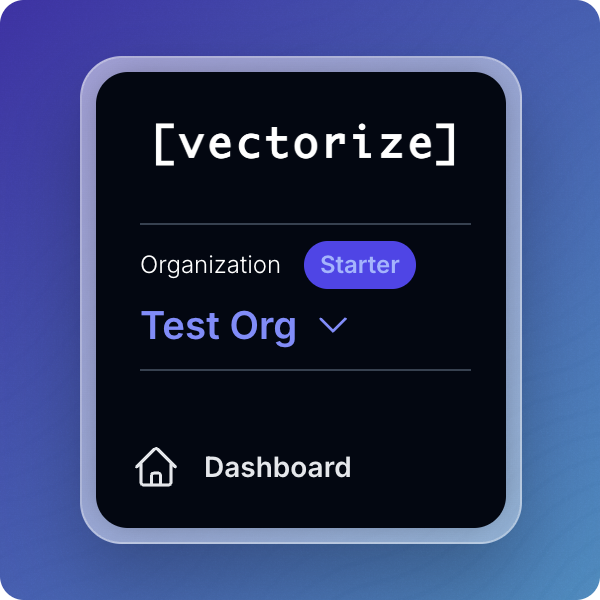
If you have access to multiple organizations, you can switch between them by clicking on the current organization's name in the sidebar, then select the desired organization from the pop-up.
Managing Users Across Organizations
Each organization maintains its own user list. To grant a user access to multiple organizations:
- Invite the user's email to each organization separately.
- The user will receive separate invitations for each organization.
Billing and Usage
Billing is managed separately for each organization. Ensure that you monitor usage and billing details within each organization's dashboard.
For more information, refer to: