Plain Source Connector
The Plain Source Connector allows you to integrate Plain customer support threads and customer data as a data source for your pipelines. This connector retrieves threads and customer information from your Plain workspace based on various filtering criteria, making it ideal for processing customer support conversations, feedback, and customer profiles for your AI applications.
Before you begin
Before starting, you'll need:
- A Plain API key with appropriate permissions to access your workspace data
- Access to your Plain workspace settings to generate an API key
Configure the connector
To configure a connector to your Plain workspace:
- Click Source Connectors from the main menu.
- Click New Source Connector from the Source Connectors page.
- Select the Plain card.
- Enter a name for your integration.
- Enter your Plain API Key.
The connector uses API key authentication to securely access your Plain data. You can generate an API key from your Plain workspace settings.
Configuring the Plain Connector in a Pipeline
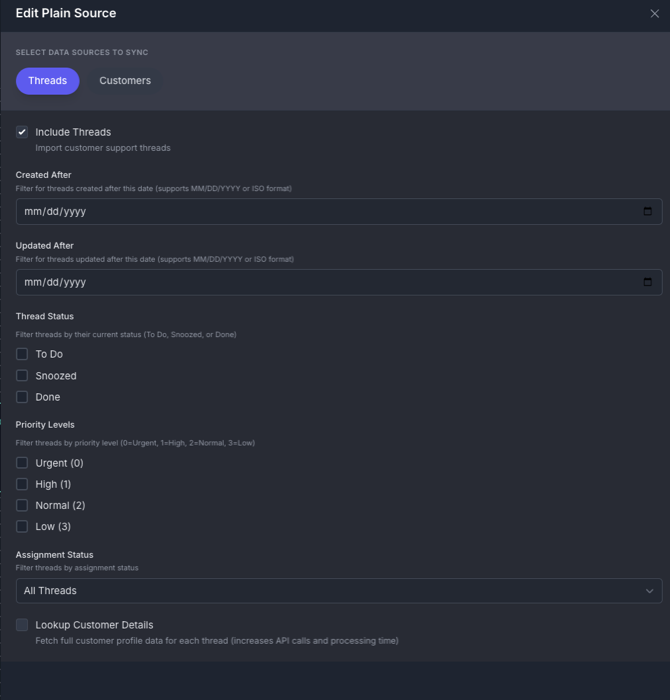
When configuring the Plain connector in a pipeline, you can specify the following options organized into two tabs: Threads and Customers.
Threads Tab
Content Selection
- Include Threads: Import customer support threads (default: enabled). Threads contain the conversation history, messages, and metadata from your support conversations.
Thread Filtering Options
Date Filters
- Created After: Filter for threads created after this date (supports MM/DD/YYYY or YYYY-MM-DD format)
- Updated After: Filter for threads updated after this date (supports MM/DD/YYYY or YYYY-MM-DD format)
Status Filters
- Thread Status: Filter threads by their current status:
- To Do: Threads requiring action
- Snoozed: Threads temporarily hidden
- Done: Completed threads
- Select multiple statuses or leave empty for all statuses
Priority Filters
- Priority Levels: Filter threads by priority level:
- Urgent (0): Highest priority threads
- High (1): High priority threads
- Normal (2): Standard priority threads
- Low (3): Low priority threads
- Select multiple priority levels or leave empty for all priorities
Assignment Filters
- Assignment Status: Filter threads by assignment:
- All Threads: Include all threads regardless of assignment
- Assigned Only: Only include threads assigned to team members
- Unassigned Only: Only include unassigned threads
Advanced Options
- Lookup Customer Details: Fetch full customer profile data for each thread (default: disabled). Note that enabling this option increases API calls and processing time.
Customers Tab
Customer Data
- Include Customers: Import customer profile data separately from threads (default: disabled). This creates individual documents for each customer with their profile information, contact details, and metadata.
Use Cases
Customer Support Analysis
When setting up a Plain connector for analyzing customer support patterns, you would typically:
- Enable Include Threads to capture all conversation data
- Set Created After Date to focus on recent conversations (e.g., last 30 days)
- Filter by Status to include "To Do" and "Snoozed" threads to focus on active conversations
- Filter by Priority to prioritize "Urgent (0)" and "High (1)" priority threads
- Enable Lookup Customer Details to enrich threads with full customer context
This approach ensures you capture relevant support conversations with the context needed for AI-powered analysis and response suggestions.
Customer Knowledge Base
For building a customer knowledge base:
- Enable Include Threads to capture resolved conversations
- Filter by Status to include only "Done" threads (resolved conversations)
- Disable Lookup Customer Details to focus on conversation content rather than customer profiles
- Set Date Ranges to include historical conversations that contain valuable support patterns
This creates a searchable knowledge base of past support interactions that can help answer similar future questions.
What's next?
-
If you haven't yet built a connector to your vector database, go to Connect Your Data and select the platform you prefer to use for storing output vectors.
OR
-
If you're ready to start producing vector embeddings from your input data, head to Pipeline Basics. Select your new Plain connector as the data source to use it in your pipeline.